Aiupscale

Image enhancement guide

ai upscale vs photoshop for sharper, faster image work

The right choice in ai upscale vs photoshop depends on whether you need automated detail recovery or hands-on creative control. This comparison breaks down the workflow, strengths, trade-offs, and best use cases for both.

Workflow fit

Where each approach fits

Both methods can improve an image, but they solve different problems. Match the tool to the amount of control, speed, and repeatability your project needs.

The quick publisher

You have a small product photo, social graphic, or thumbnail that looks soft and need a cleaner version without rebuilding the image by hand.

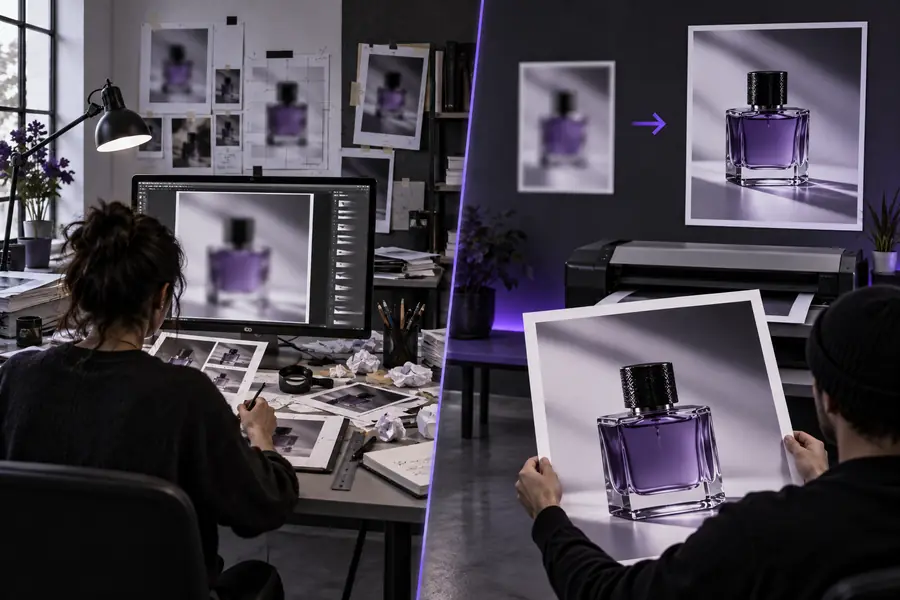
An AI workflow is usually the shorter path because it can enlarge the image and restore plausible edges in one focused pass.

free ai upscale online

The retoucher

You need to remove objects, adjust skin tones, mask several areas, or combine enhancement with layered compositing.

Photoshop is the stronger choice when image improvement is only one part of a larger non-destructive editing process.

what does ai upscale mean?

The archive owner

You are preparing scanned prints, old family photographs, or compressed images where preserving recognizable faces and textures matters most.

AI enhancement can provide a useful first pass, while Photoshop gives you the manual cleanup and restoration controls needed for difficult defects.

is ai upscaling good

The large-format creator

You need a bigger image for a presentation, print mockup, display background, or detailed crop and want to test enlargement before spending time on finishing work.

Start with AI enlargement to establish usable pixels, then use Photoshop for color, layout, sharpening, and final export decisions.

upscale image to 4k
Practical method

A simple comparison workflow

You do not have to commit to one tool for every image. Test the same source through both routes, then judge the result at the size and distance where it will actually be used.

Start with the original

Keep the highest-quality source you have and make a copy for testing. Note the image dimensions, visible compression, focus problems, and the details you most want to preserve.

Enhance before you polish

Use AI enlargement when the main need is recovering a larger, more usable image quickly. Use Photoshop when the source needs masks, healing, layers, selective sharpening, or deliberate reconstruction.

Inspect at final size

Compare faces, text, hair, fabric, edges, and repeated patterns at the intended output size. Choose the version that looks natural in context, not merely the one that looks dramatic when zoomed in.

Visual comparison

Automation first, control second

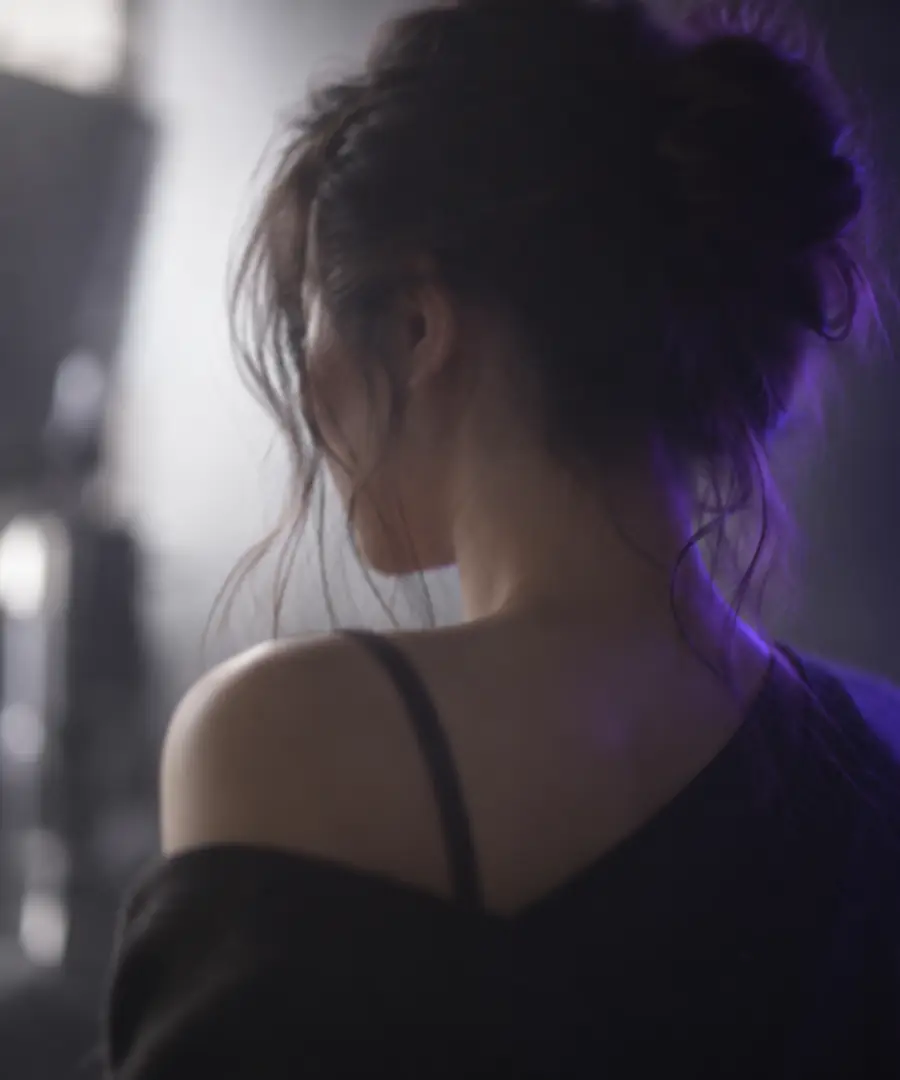
A good enlargement should add useful clarity without making the image look processed. The before-and-after view below illustrates the kind of improvement to inspect: edge definition, facial detail, and texture continuity.

Original detail

Soft close-up portrait before image enhancement
Close-up portrait with subtle recovered detail after enhancement
Enhanced detail

Judge texture and edges, not just apparent sharpness.

Side-by-side guide

AI enhancement and Photoshop at a glance

The comparison is less about finding one universal winner and more about identifying the task that should happen first. AI enhancement is focused and automated; Photoshop is broad, layered, and intentionally hands-on.

AI upscaling Photoshop
1

Primary purpose

AI upscaling

Enlarge an image and estimate plausible detail in a focused enhancement pass.

Photoshop

Edit, retouch, composite, color-correct, and prepare images through a broad creative toolkit.

2

Speed to first result

AI upscaling

Usually faster for a single enlargement because fewer decisions are required before processing.

Photoshop

Often slower when the image needs selections, masks, layers, and manual corrections.

3

Creative control

AI upscaling

Limited to the controls exposed by the enhancement workflow and its model behavior.

Photoshop

High control over localized changes, layer order, opacity, masks, and blend decisions.

4

Small or missing detail

AI upscaling

Can infer likely texture and edges, which may help when the source is soft or undersized.

Photoshop

Can sharpen and retouch existing information, but cannot reliably recover detail that was never captured.

5

Complex retouching

AI upscaling

Not designed for compositing, object removal, advanced masking, or multi-layer art direction.

Photoshop

Built for detailed retouching, selections, compositing, and controlled corrections.

6

Repeatability

AI upscaling

Useful when many images need a similar enlargement step with minimal manual work.

Photoshop

Repeatable when actions and presets are carefully prepared, but projects still need more setup and review.

7

Best handoff

AI upscaling

A strong starting point before color work, layout, or final cleanup in another editor.

Photoshop

A finishing environment when the image must be adjusted precisely for a specific output.

8

Risk to watch

AI upscaling

Invented texture, altered facial features, halos, or overly smooth surfaces can appear when the source is severely damaged.

Photoshop

Over-sharpening, visible retouching, flattened detail, and inconsistent manual edits can reduce realism.

Honest limitations

Limits and edge cases to check

Neither route can turn every poor source into a faithful high-resolution original. Knowing where the result may fail helps you choose a safer workflow and set realistic expectations.

It cannot recover certainty from blur

When motion blur, missed focus, or heavy compression has erased important structure, AI may create a convincing guess rather than recover the true detail.

WorkaroundUse the clearest source available, compare facial and text details closely, and treat uncertain areas as reconstruction rather than evidence.

It cannot replace a layered edit

An automated enlargement will not give you Photoshop-style control over masks, adjustment layers, object removal, compositing, or selective retouching.

WorkaroundUse enhancement as the first pass, then move the result into a layered editor when the image needs localized creative decisions.

It cannot guarantee natural texture

Skin, hair, foliage, fabric, and repeated patterns can become too smooth, too crisp, or slightly synthetic when the source is very small.

WorkaroundInspect the image at its intended viewing size, reduce excessive sharpening, and compare against the original before exporting.

It cannot decide your final purpose

A result that works for a phone screen may not be suitable for print, a crop, a transparent design, or a large display. Output requirements change what counts as a good enhancement.

WorkaroundSet the final dimensions and delivery format first, then judge both methods against that actual use rather than against maximum zoom.

Make the next version

Start with the image, not the tool

If the main problem is a soft or undersized image, begin with a focused AI enhancement and inspect the result before committing to a longer editing session. If the project needs compositing, detailed retouching, or exact local control, carry the improved image into Photoshop afterward.

  • Use the original file whenever possible
  • Compare results at the intended output size
  • Keep manual editing for decisions that need precision

Common questions

FAQ

Answers to the practical question behind this comparison: which approach should you use for a particular image and workflow?

AI upscaling focuses on enlarging an image and estimating detail automatically. Photoshop is a broader editing environment with tools for layers, masks, retouching, compositing, color work, and precise manual adjustments.

AI upscaling can be the more direct option when enlargement is the main task and you want a quick first result. Photoshop offers more control, but it may require more manual work and cannot reliably recreate detail that the original image never captured.

Yes, Photoshop can resize images and apply sharpening or other edits as part of a larger workflow. The result can be useful, but enlargement alone does not guarantee the same kind of inferred texture or edge reconstruction associated with an AI-focused process.

That can be a practical workflow when the source is too small for the edits you need to make. Enhance a copy first, inspect faces, text, and textures for unwanted changes, then use Photoshop for color, masks, retouching, composition, and final output.

No. It can make an image more usable, but severely blurred, compressed, or damaged sources may produce invented texture, halos, or unnatural features. Compare the result with the original and judge it at the size and context where it will be used.

Upscale an image
Upscale an image