Choose the source
Start with the largest original available, not a screenshot of it. Note the image’s current dimensions so you can judge how much enlargement you need.
Image enlargement
A free ai upscale starts with the best original you have. Enlarge it, then inspect faces, lettering, and fine edges before deciding whether the result is usable.
Keep your original image and decide where the enlarged version will be used. An AI upscale has a better starting point when the source is sharp enough to show the details that matter.
Free access does not remove the limits of the source image. Treat the output as a new interpretation, not recovered original detail.
An AI upscale can make a blurred face look more defined without knowing what the person actually looked like.
WorkaroundUse a higher-quality original when identity or accuracy matters, and compare facial features at full size.
Letters on signs, labels, and screenshots can become sharper-looking but incorrect.
WorkaroundProofread every character against the source or replace important text in an editor.
Blocky edges and ringing can be enlarged along with the subject.
WorkaroundFind an earlier, less-compressed copy rather than repeatedly saving a small download.
Make one enlargement, inspect it, and keep the original until you know which version works.
Start with the largest original available, not a screenshot of it. Note the image’s current dimensions so you can judge how much enlargement you need.
Describe the intended result and ask for restrained detail. For a portrait, preserving natural skin and recognizable features matters more than maximum sharpness.
View the output at its actual size beside the original. Check eyes, hair, text, straight lines, and background patterns before sharing or printing it.
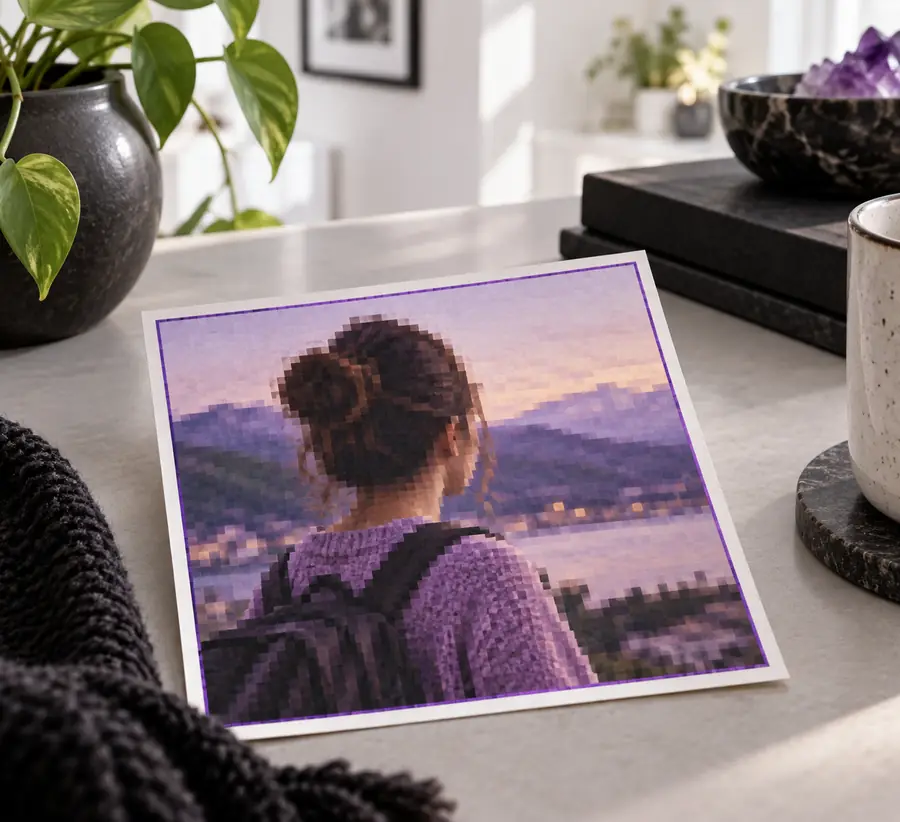
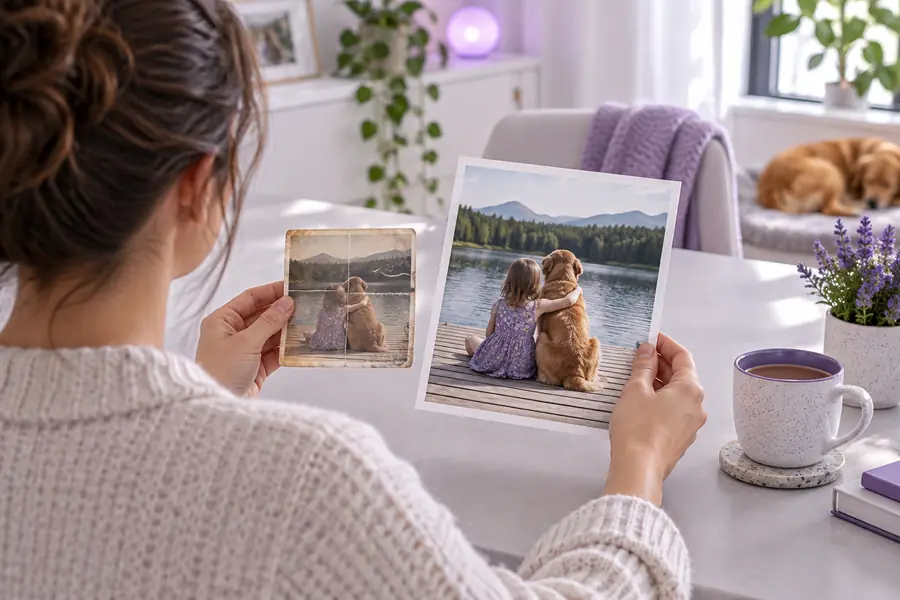
This portrait pair illustrates what to inspect, not a guaranteed result. Look for plausible hair and skin texture as well as sharp edges; an AI upscale should still resemble its source.
The right output depends on its destination. Check details that your audience will actually see.
You have a small photo saved locally and want to try enlargement without installing an editor.
Compare the preview with the original before keeping the larger file.
free ai upscale onlineYou want a larger copy of an older portrait while preserving recognizable faces.
Use a careful source-to-output check for features the model may reinterpret.
how to upscale using ai?You need to place an image on a high-resolution screen.
Calculate the required pixel dimensions before aiming for a larger export.
upscale image to 4kA conventional resize and an AI upscale both increase pixel dimensions, but they handle visible detail differently. Choose based on whether faithful pixels or a more detailed-looking image matters most.
AI enlargement
Increases output dimensions
Standard resize
Increases output dimensions
AI enlargement
May generate plausible texture
Standard resize
Interpolates from existing pixels
AI enlargement
Can reinterpret ambiguous areas
Standard resize
Does not invent recognizable features
AI enlargement
May improve appearance but alter features
Standard resize
Preserves the same soft facial information
AI enlargement
Can produce convincing but incorrect characters
Standard resize
Keeps characters soft rather than guessing them
AI enlargement
Photos where a more detailed-looking result is useful
Standard resize
Graphics or records where pixel fidelity takes priority
A free ai upscale is worth testing when the source is small, but a polished result can still contain made-up details. Keep the original, compare both versions at full size, and reject an output that changes a face, label, or other essential feature.
You can try an AI enlargement without assuming the first result will be suitable. Check the tool’s current file and output conditions before starting, then review the enlarged image against your original.
No. An AI upscale predicts plausible detail from the pixels it receives; it cannot retrieve information that was never captured. Treat newly sharp faces, patterns, and letters as guesses until you verify them.
Use the largest, least-compressed original you can find. A clear source gives the enlargement process more reliable edges and texture than a tiny screenshot or a repeatedly saved copy.
Strong detail generation can exaggerate skin, hair, outlines, or compression artifacts. Compare it at full size with the source and try a cleaner original or a more restrained result if the subject no longer looks right.