Pick the best source
Start with the original photo rather than a compressed screenshot if possible. Check that the subject is reasonably in focus and crop away anything you do not need.
Browser-based enhancement
Start with a photo that looks too small or soft, then request an AI-assisted enlargement in your browser. Inspect the result closely before using it: sharper-looking pixels do not always mean recovered detail.
An online workflow is useful when you want to test an enlargement without setting up desktop software. These related guides cover the decision before and after that first attempt.
Check what to look for when testing an upscaler without making a payment.
Follow a practical process for choosing a source image and reviewing the output.
Understand when a larger pixel count helps and when the source remains the limiting factor.
AI upscale tools estimate plausible detail. They cannot verify what was present in a scene when the original was captured.
A tiny face or distant sign may look cleaner after enlargement, but invented features and letters can be wrong.
WorkaroundUse the highest-resolution original you have, and verify any detail that must be accurate.
Motion blur and missed focus can spread information across the image. More pixels alone will not restore a sharp exposure.
WorkaroundChoose a sharper frame or another photograph before trying AI upscale.
Using an online service may require sending an image for processing; handling and retention depend on that service.
WorkaroundRead its privacy terms before uploading confidential photos, or use a local editor instead.
The useful part of an online workflow is not simply making the file larger. It is checking whether the new version serves its intended use.
Start with the original photo rather than a compressed screenshot if possible. Check that the subject is reasonably in focus and crop away anything you do not need.
Describe the subject and what must stay faithful, such as natural skin or readable edges. Avoid asking the tool to manufacture details you need to treat as fact.
Inspect faces, lettering, repeated patterns and fine edges at a realistic viewing size. Keep the original so you can return to it if the AI upscale result introduces artifacts.
A before-and-after view helps you decide whether an enhancement looks useful rather than merely more processed.
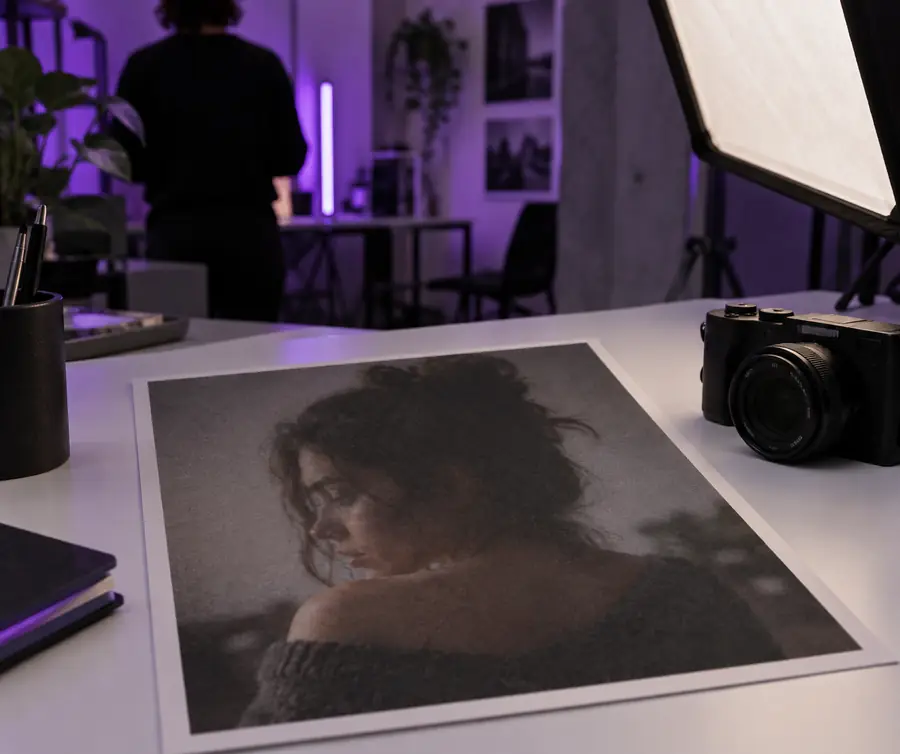

Look at hair edges, skin texture and facial features. If the enhanced version changes their appearance, prefer a subtler result or the original.
Both methods produce a larger image, but they do different things to its visible texture. Neither can guarantee an accurate reconstruction of lost detail.
Ordinary resizing
Calculated from neighboring pixels
AI-assisted enhancement
Estimated from patterns learned by a model
Ordinary resizing
Often remains soft
AI-assisted enhancement
May appear more defined, but can be invented
Ordinary resizing
Shape usually stays close to the source
AI-assisted enhancement
Features need careful inspection for changes
Ordinary resizing
Usually stays blurry if the source is blurry
AI-assisted enhancement
May look convincing while spelling remains incorrect
Ordinary resizing
A modest size change when fidelity matters
AI-assisted enhancement
A visual improvement when the output can be reviewed
Ordinary resizing
Check softness and pixelation
AI-assisted enhancement
Check artifacts, altered features and false detail
The right level of enhancement depends on where the image will appear and which details need to remain trustworthy.
An older portrait is small, but the faces should remain recognizable.
Try a gentle enlargement and compare expressions and facial features with the source.
is ai upscaling goodA cropped mobile photo needs to look clearer on a larger screen.
Work from the original phone image where possible and inspect the final crop.
ai upscale for iphoneA browser result needs further retouching before publication.
Compare an AI-assisted starting point with a manual editing workflow.
ai upscale vs photoshopDescribe what you want preserved, run the enhancement, and compare it with your original. The best AI upscale result is the one that holds up when you inspect the details that matter.
Yes, a browser-based workflow does not require a desktop editor. You still need to check the service's supported inputs and review its result before relying on the enlarged image.
No. AI can create a sharper-looking estimate, but it cannot prove what an obscured face, sign or texture originally contained. Keep the source image for comparison.
A reasonably clear source with visible subject detail gives the tool more to work from. Severe blur, heavy compression and extremely small crops are harder to improve convincingly.
Only after checking how the service processes and retains uploads. If the image is confidential or you cannot accept remote processing, use a local editing option instead.